
How to connect your YouTube channel.
Connect YouTube from Add pages to Bibby, sign in with Google, grant both required permissions, then pick your channel. Follow the steps below in order.
Before you start
Use a Google account that owns or manages the YouTube channel you want. You need access to add the channel in Bibby after Google sign-in.
Both Google permissions are required — do not skip either one
On Google's "Select what Bibby can access" screen you will see two YouTube options. You must leave both checked (or use Select all): Manage your YouTube videos and View your YouTube account. If either box is unchecked, Bibby cannot complete the connection or list your channel.
After both are checked, click Continue. The screenshot in Step 2 shows the correct state.
1Open Add pages to Bibby and choose YouTube
In your Bibby dashboard, open the connect flow (for example, + Add Account or Channels → add). When you see Add pages to Bibby, click Connect on the YouTube card.
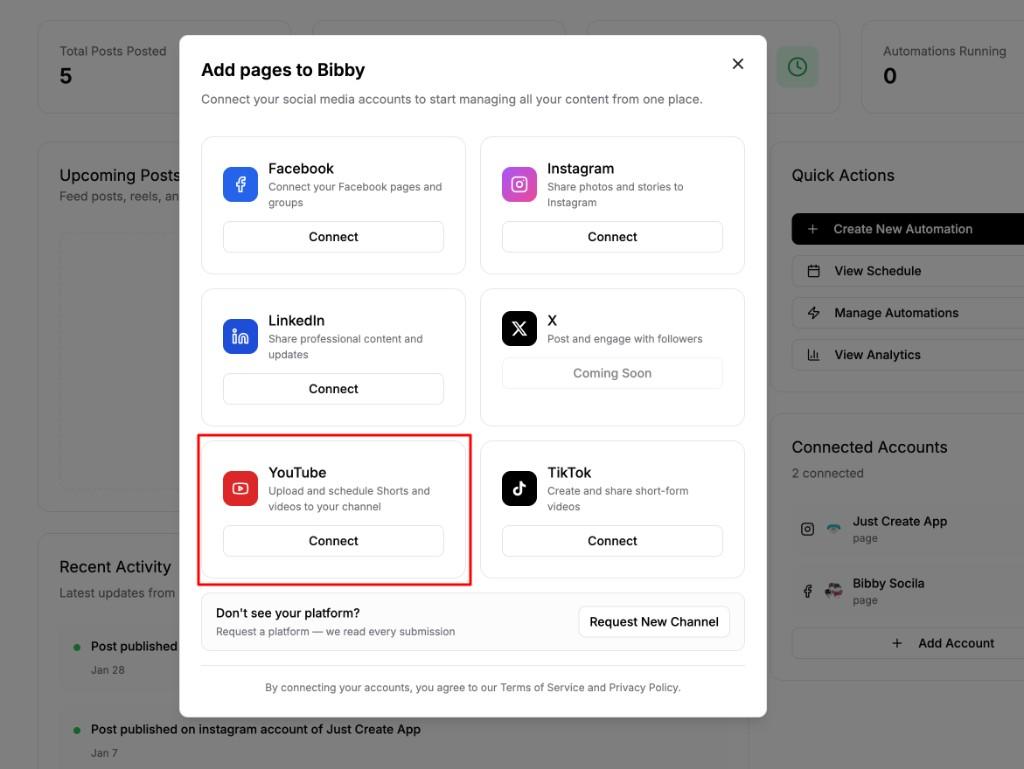
Select YouTube, then Connect.
2Sign in with Google and grant both YouTube permissions
Complete Google sign-in if prompted. On the permissions screen, ensure Manage your YouTube videos and View your YouTube account are both selected, then click Continue.
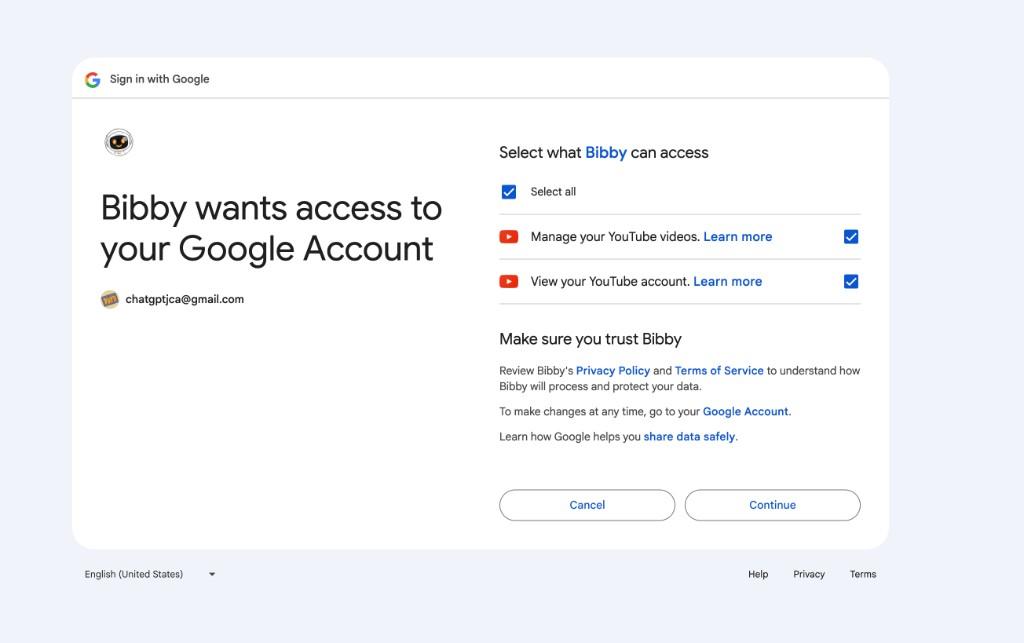
Both options checked (or Select all) — required for Bibby to work with your channel.
3Select your channel and add it to Bibby
When Select Accounts to Connect appears, check the box next to your YouTube channel, then click Select accounts to add (or the equivalent confirm button).
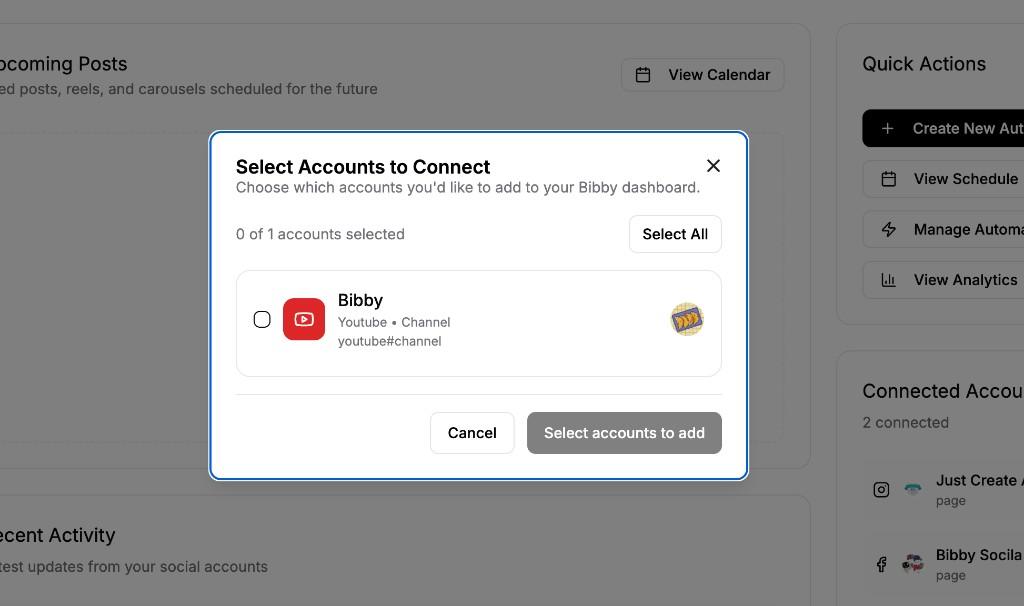
Pick your channel and finish adding it to your dashboard.
Troubleshooting
- No channel in the list? Confirm both YouTube permissions were granted in Step 2, then use Try again in Bibby's modal or reconnect from Add pages to Bibby.
- Wrong Google account? Sign out of Google in the browser or pick a different account when Google prompts you.
- You need appropriate access on the channel (for example, owner or manager) for it to appear and publish correctly.
Need more help?
If you followed every step and still cannot connect, our team can help.
Contact Support