
How to connect your LinkedIn personal account and LinkedIn pages.
Step-by-step guide to connect your LinkedIn personal profile and Company Pages to Bibby. Unlike other platforms, Bibby supports both personal profiles and Company Pages on LinkedIn.
What you can connect
Bibby supports both your LinkedIn personal profile and LinkedIn Company Pages. For Company Pages, you need Admin or Content Admin access.
Connect your LinkedIn in 3 steps
Follow these steps in order.
Quick overview: 1. Open Add Channel → 2. Sign in to LinkedIn → 3. Select your profile and Company Pages
1Open the Add Channel modal
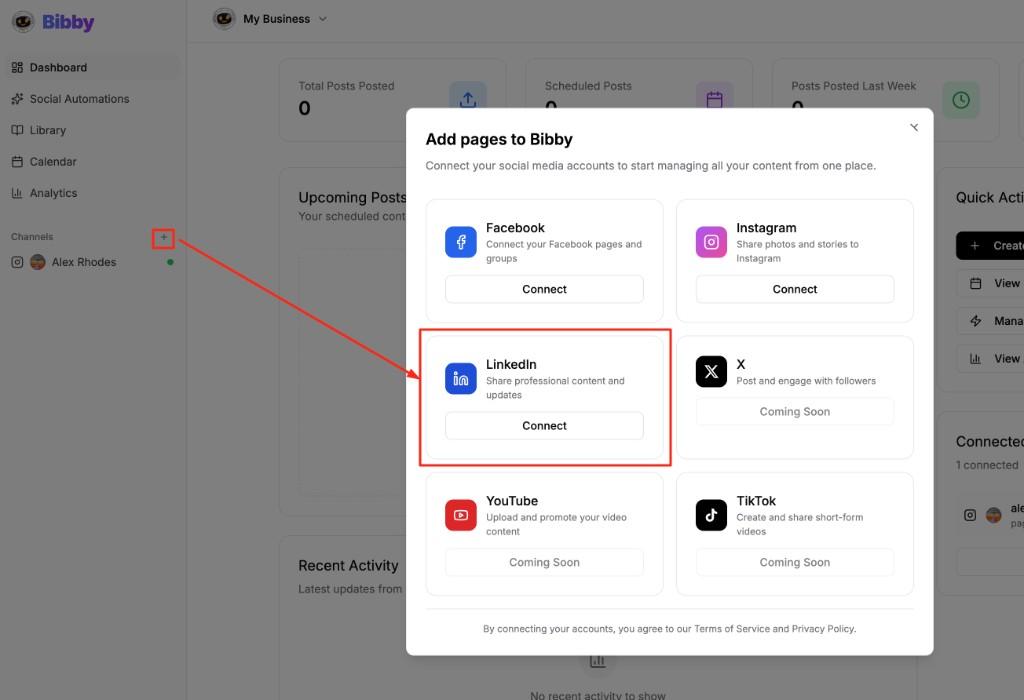
In your Bibby dashboard, click the Plus (+) icon next to Channels in the sidebar, or go to the Channels page and click Add Channel.
Select LinkedIn from the platform list.
2Sign in and authorize Bibby
A LinkedIn login window will open. Sign in with your LinkedIn account. When LinkedIn asks for permissions, grant all requested permissions so Bibby can post on your behalf.
Use the LinkedIn account that manages your profile and any Company Pages
Accept all permission requests
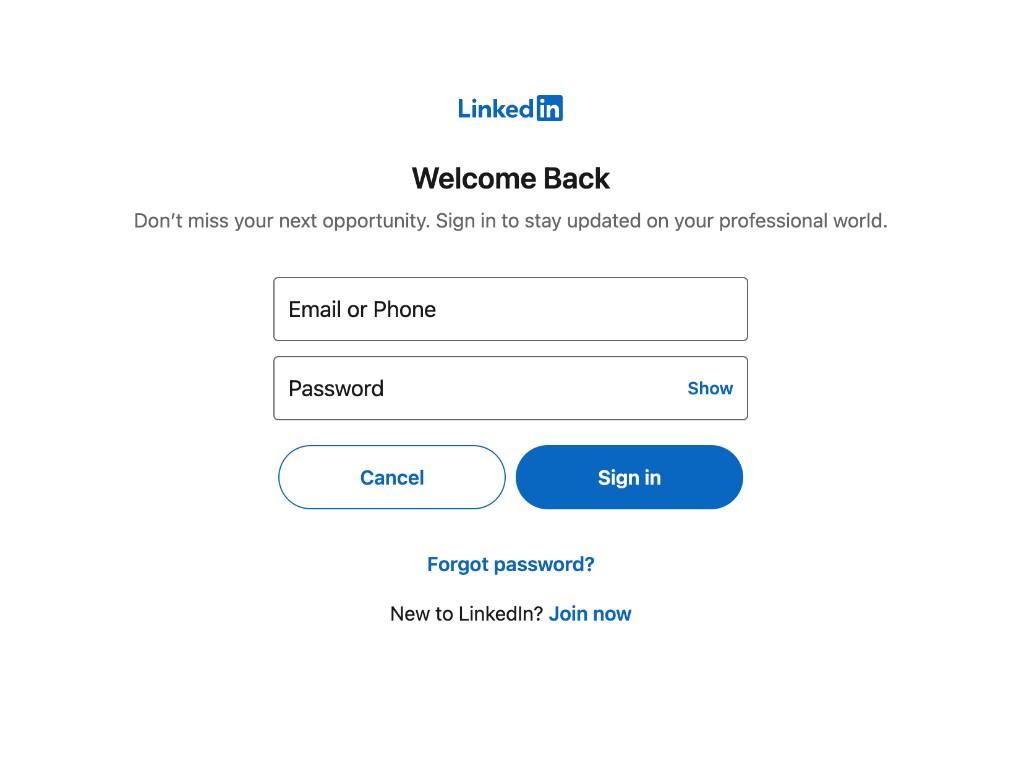
Sign in with your LinkedIn account when the login window opens.
3Select your profile and Company Pages
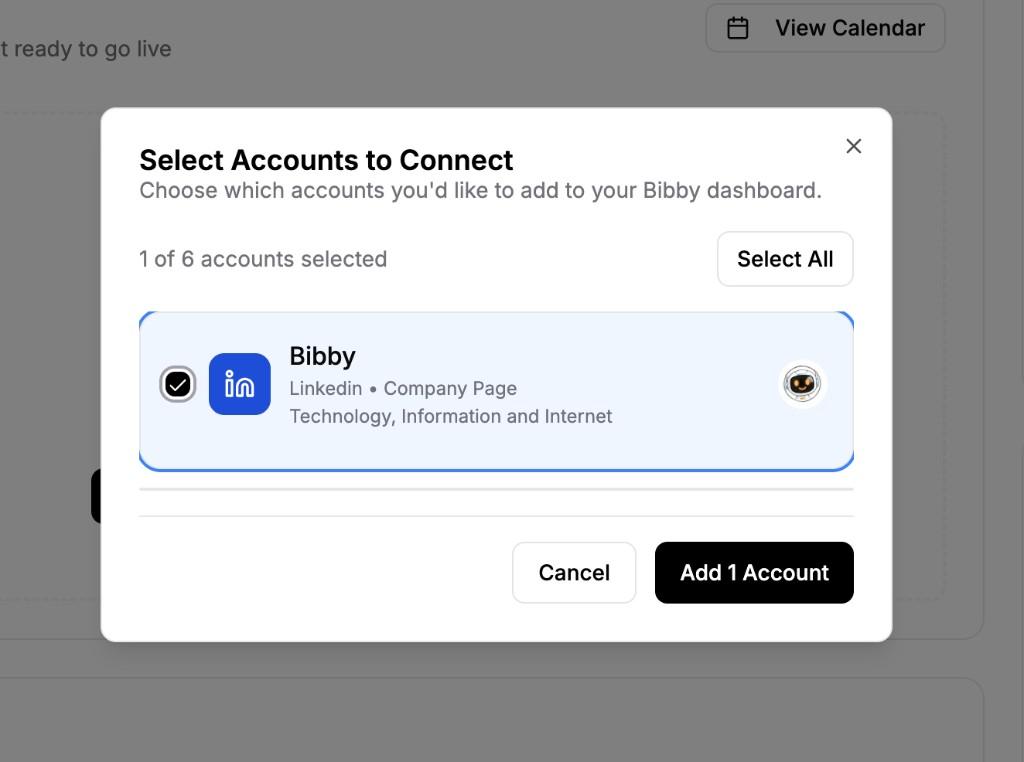
After authorization, you'll see your LinkedIn personal profile and any Company Pages you manage. Select the account(s) you want to add to Bibby and click Add Accounts.
No accounts found?
If you don't see your profile or Company Pages after connecting, it usually means:
- For Company Pages: You need Admin or Content Admin access
- Not all permissions were granted—try again and accept all requests
- LinkedIn may take a moment to appear—wait a few seconds and the modal will retry automatically
Click Try again in the modal to reconnect with updated permissions, or contact support if you need help.
Need Help?
Having trouble connecting your LinkedIn account? Our support team is here to help.
Contact Support