
How to connect Instagram pages.
Step-by-step guide to connect your Instagram Business or Creator account to Bibby. Your Instagram must be linked to a Facebook Page.
Before you start
Your Instagram account must be a Business or Creator account—personal accounts cannot be connected. It must also be linked to a Facebook Page that you manage with Admin access.
Bibby can only connect Instagram accounts that are linked to a Facebook Page you manage. If you don't see your Instagram after connecting, it's often because it isn't linked—or you're not viewing the right Page. Verify your setup before you start.
Important: Switch to your desired Facebook Page before checking. The Linked profiles page shows which Instagram accounts are connected to the Page you're currently viewing.
Check linked Instagram accounts
Go to your Facebook Page → Settings & privacy → Linked profiles (or use the link below). Make sure you've switched to the Page you want to connect. You should see your Instagram Business or Creator account listed if it's properly linked.
Check linked profiles (facebook.com)Connect your Instagram in 4 steps
Follow these steps in order.
Quick overview: 1. Convert to Business/Creator (if needed) → 2. Open Add Channel → 3. Sign in via Facebook → 4. Select your Instagram
1Convert to Business or Creator (if needed)
If your Instagram is still a personal account, go to Instagram Settings → Account → Switch to Professional Account. Choose Business or Creator and link it to your Facebook Page.
2Open the Add Channel modal
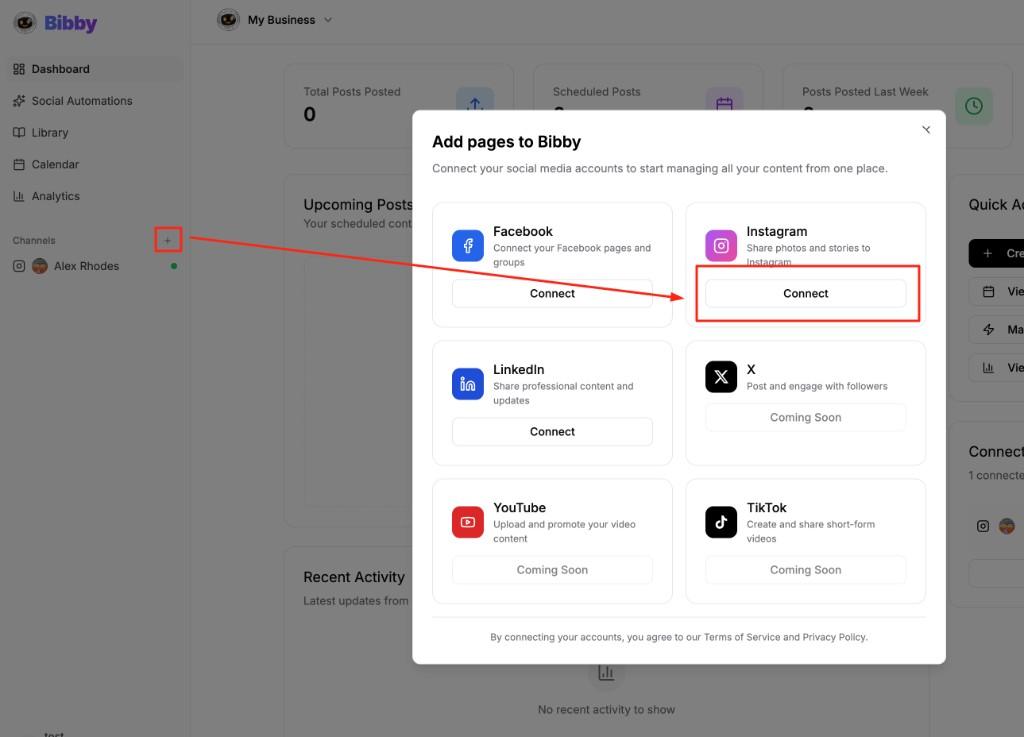
In your Bibby dashboard, click the Plus (+) icon next to Channels in the sidebar, or go to the Channels page and click Add Channel.
Select Instagram from the platform list.
3Sign in via Facebook and grant permissions
Instagram connects through Facebook. You'll be asked to sign in to Facebook and authorize Bibby. Use the Facebook account that is linked to your Instagram Business/Creator account. Grant all requested permissions.
Use the Facebook account linked to your Instagram
Accept all permission requests
Ensure you have Admin access on the linked Facebook Page
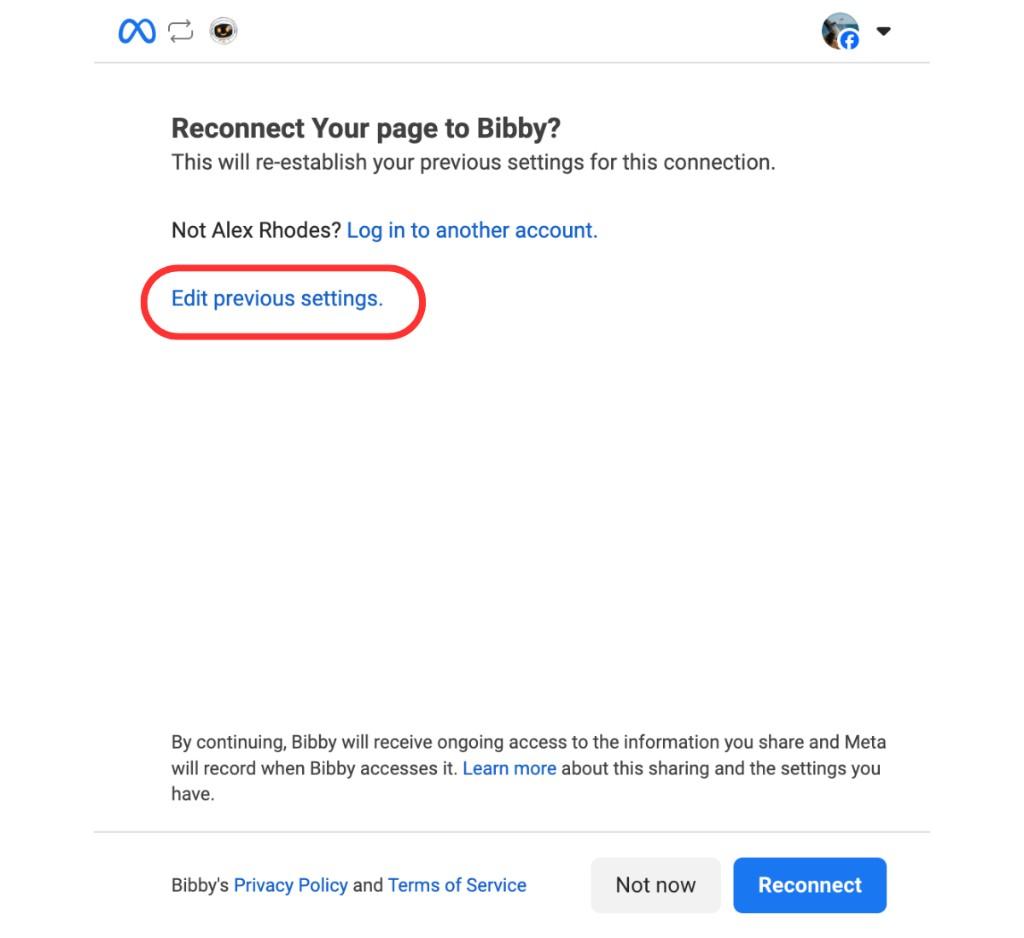
If reconnecting: click Edit previous settings to update permissions.
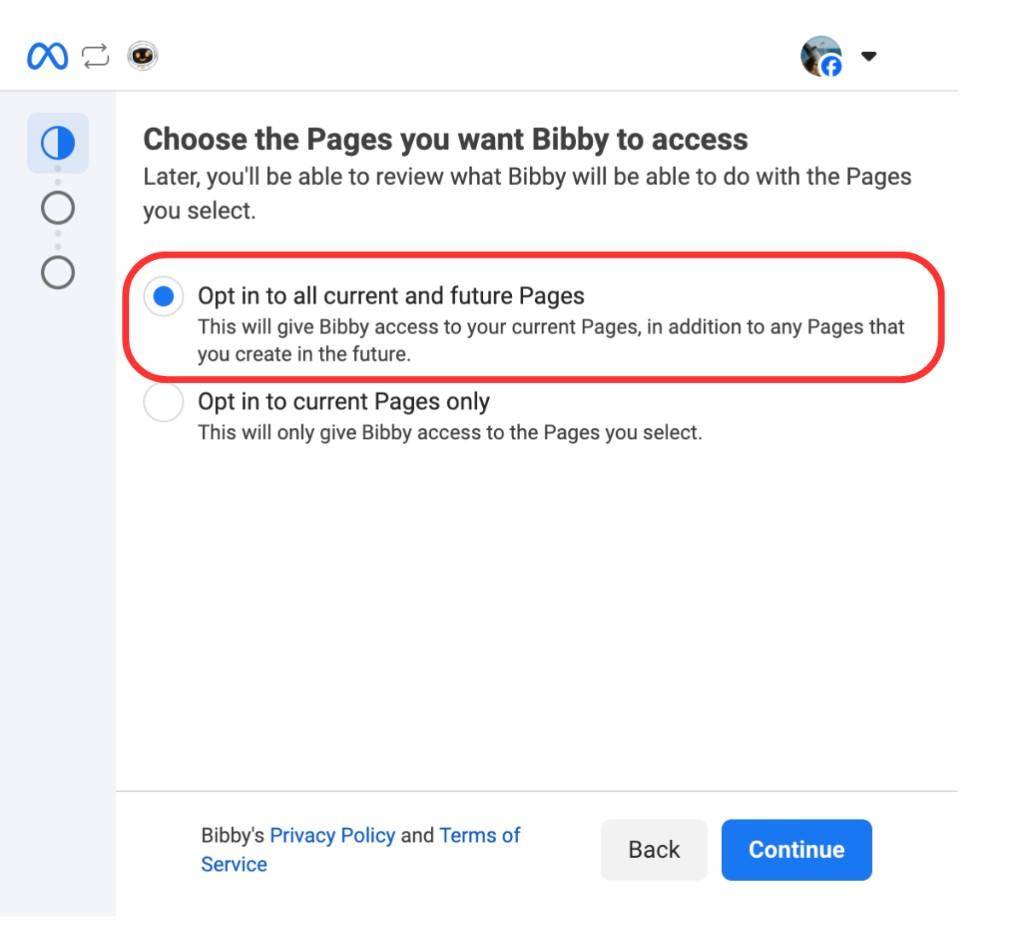
Select Opt in to all current and future Pages.
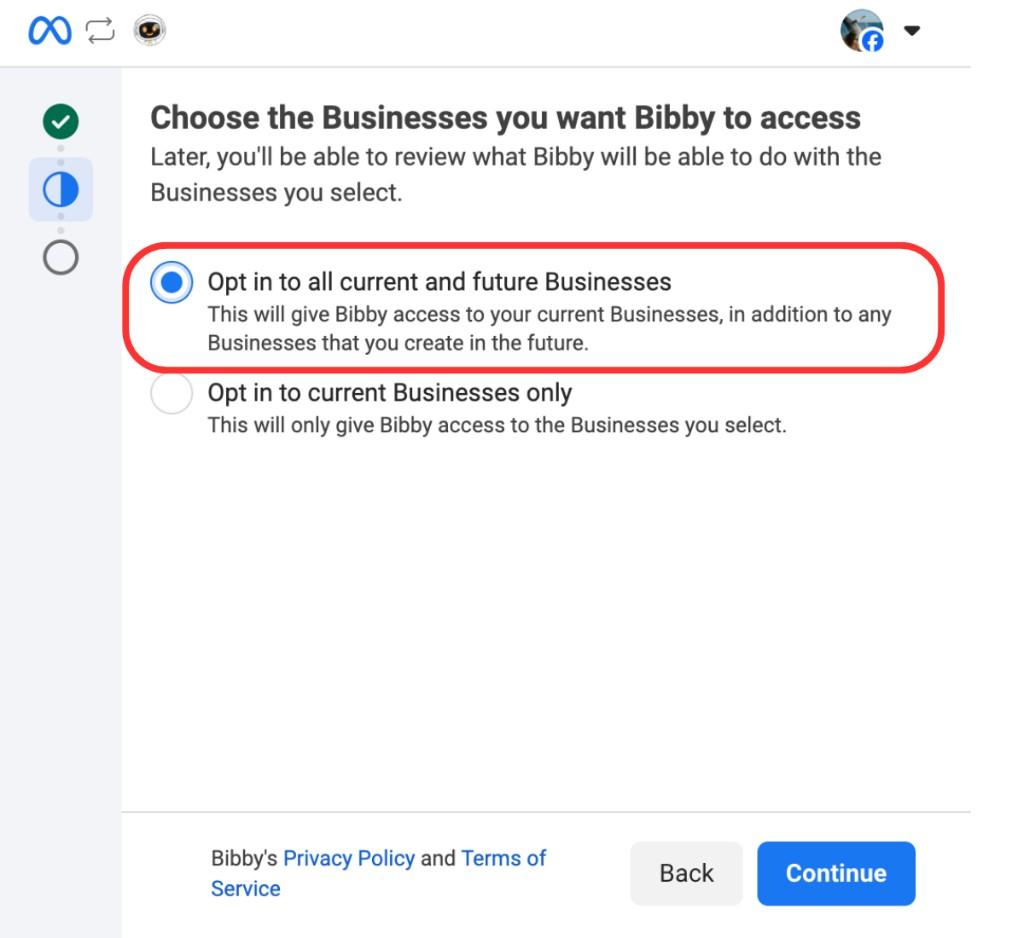
Select Opt in to all current and future Businesses.
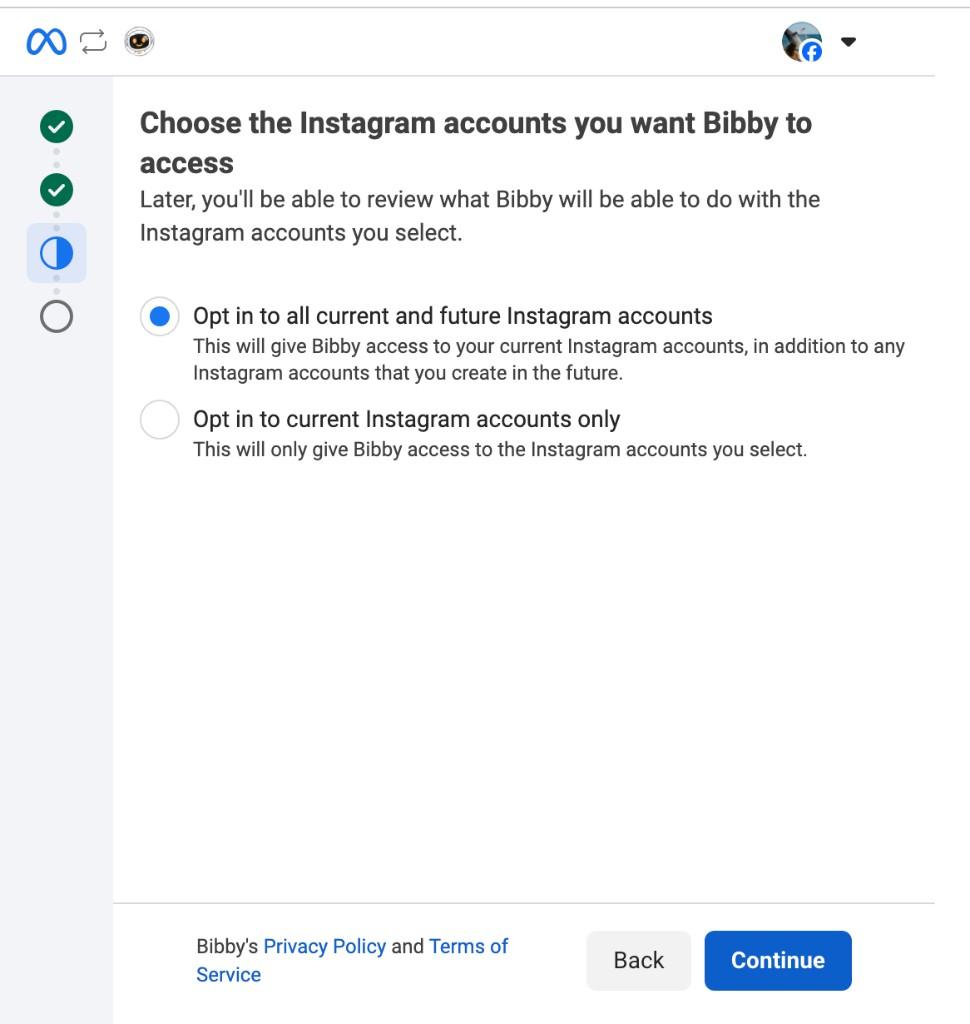
Select Opt in to all current and future Instagram accounts.
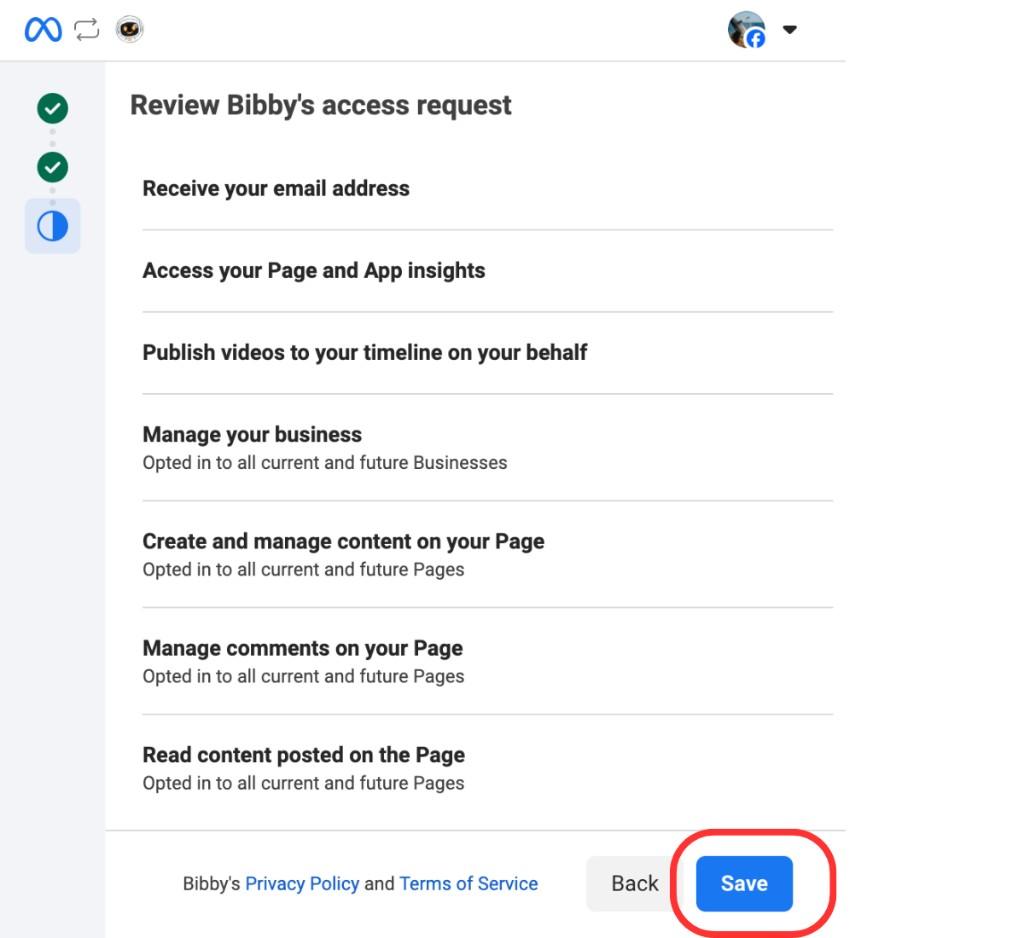
Review all permissions and click Save.
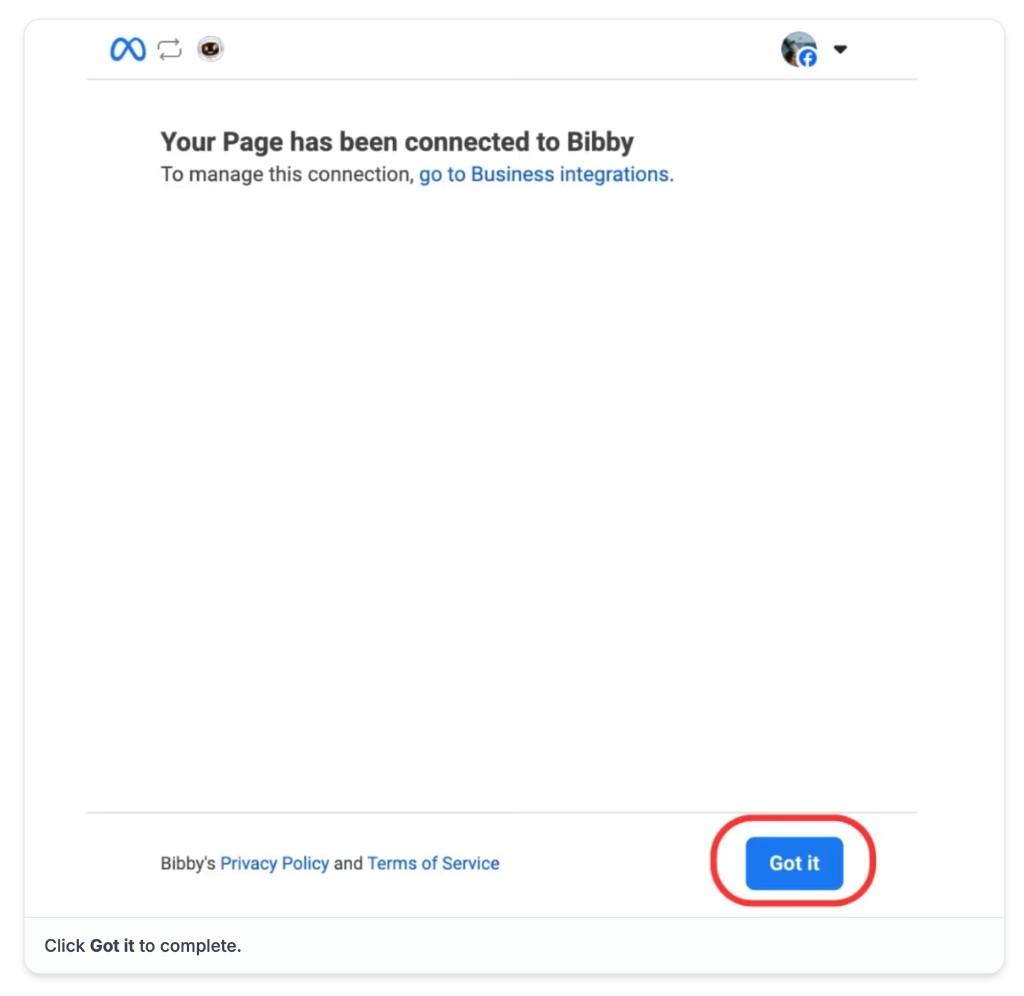
Click Got it to complete.
4Select and add your Instagram
After authorization, you'll see your Instagram account. Select it and click Add Accounts.
No accounts found?
If you don't see your Instagram after connecting, it usually means:
- Your Instagram is still a personal account—convert to Business or Creator
- Your Instagram isn't linked to a Facebook Page—verify using the link above, then link it in Instagram Settings
- You don't have Admin access on the linked Facebook Page
- Not all permissions were granted—try again and accept all requests
Click Try again in the modal to reconnect, or contact support if you need help.
Need Help?
Having trouble connecting your Instagram? Our support team is here to help.
Contact Support